
Assignments for class members & learners (BETA)
Assignments allow your class manager to give you a task, collect a publication you created in Linkr, and optionally provide a grade and private feedback.
This guide explains how to find an assignment, understand its important dates, submit your work, respond when a submission is sent back, and view your results.
Are you a class manager? See Assignments for class managers to learn how to create, monitor, grade, and close assignments.
In this article
- How assignments work in Linkr
- Find and open an assignment
- Understand the assignment dates
- Prepare your publication
- Submit your publication
- After you submit
- If your submission is sent back
- View your grade and feedback
How assignments work in Linkr
For an assignment, you complete your work by writing a publication in Linkr and then select that publication to submit it.
When you submit, Linkr creates a non-editable copy of your publication for the assignment. This preserves exactly what you submitted, even if you later edit the original publication.
Your grade and private feedback are visible only to you and your class managers.
Find and open an assignment
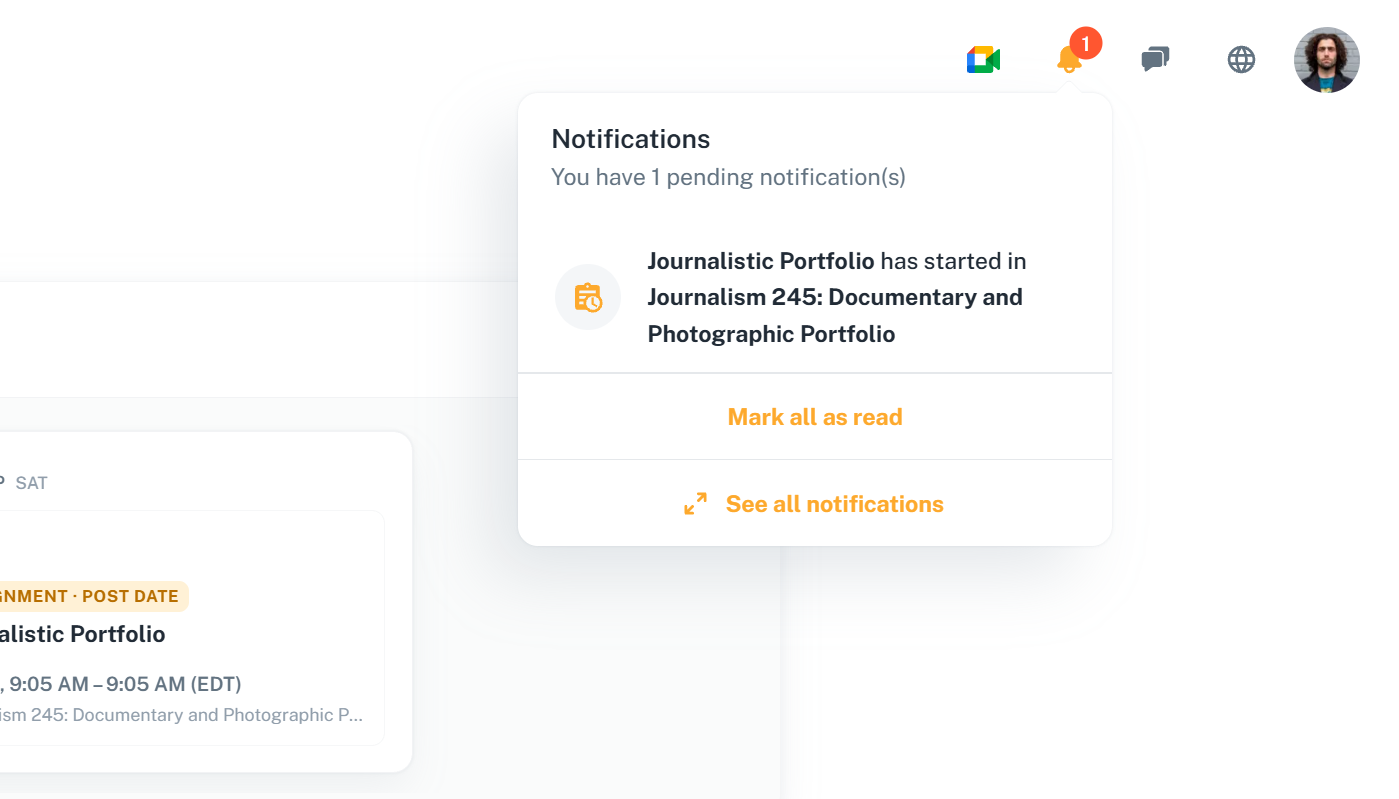
You cannot see an assignment before its start date. When your first assignment starts:
-
You receive an in-app notification:
-
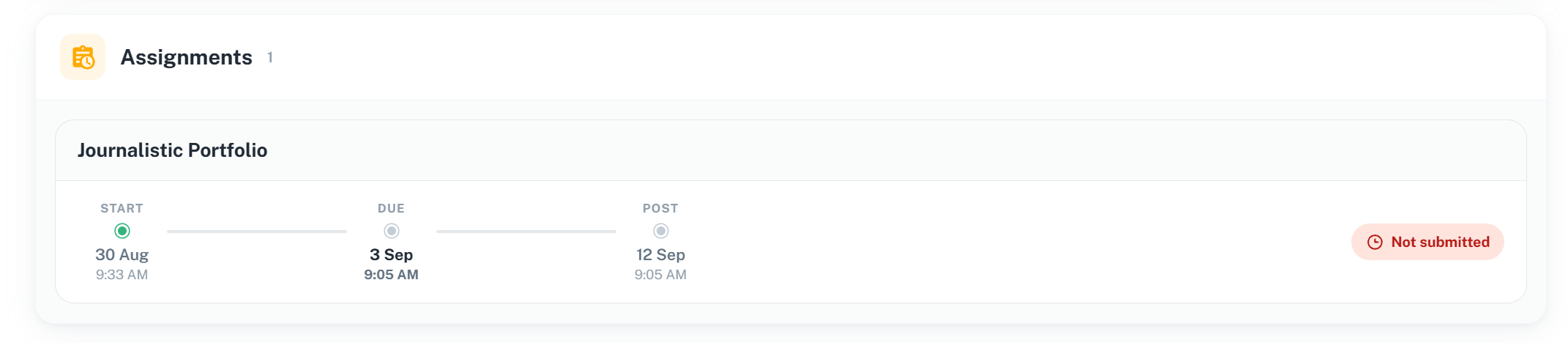
The assignment appears in the Assignments section of your personal dashboard:
-
Its important dates appear among your upcoming calendar events:
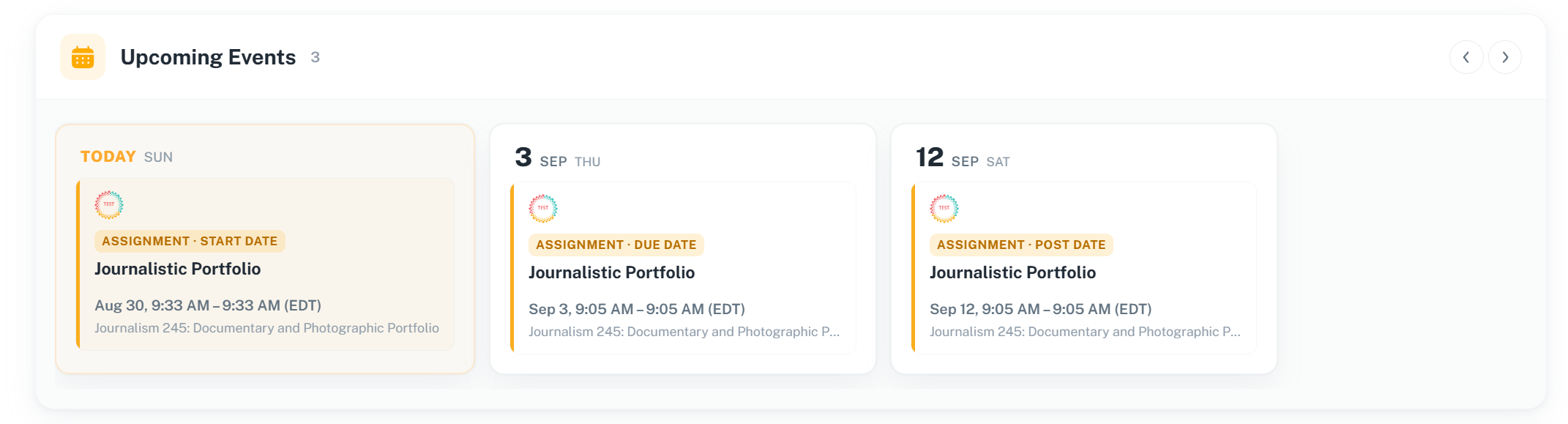
Select the assignment from your dashboard, or open the class and select its Assignments tab.
Understand the assignment dates
Every assignment has three dates that you can find at the bottom of the assignment instructions:

- Start date: The date and time when you can see the assignment and begin working on it.
- Due date: The date and time by which you are expected to submit your work.
- Post date: The date and time when you should expect your grade and feedback.
The post date is informational. Your class manager may release your results before or after this date while the assignment remains open.
By default, you cannot submit after the due date. However, your class manager may allow late submissions. When late submissions are allowed, you can submit until the class manager closes the assignment.
Once an assignment is closed, you can no longer submit or resubmit work.
Prepare your publication
Your work must exist as a publication in Linkr before you can submit it. Review the assignment instructions, learning outcomes, and grading items before preparing your publication.
You can create a new publication or use one you have already created. The same original publication can be selected for more than one assignment.
Important: Submitting a publication does not submit the editable original. Linkr creates a separate, non-editable copy specifically for the assignment.
Submit your publication
To submit your work:
- Open the assignment.
- Review the instructions, grading items, and important dates.
-
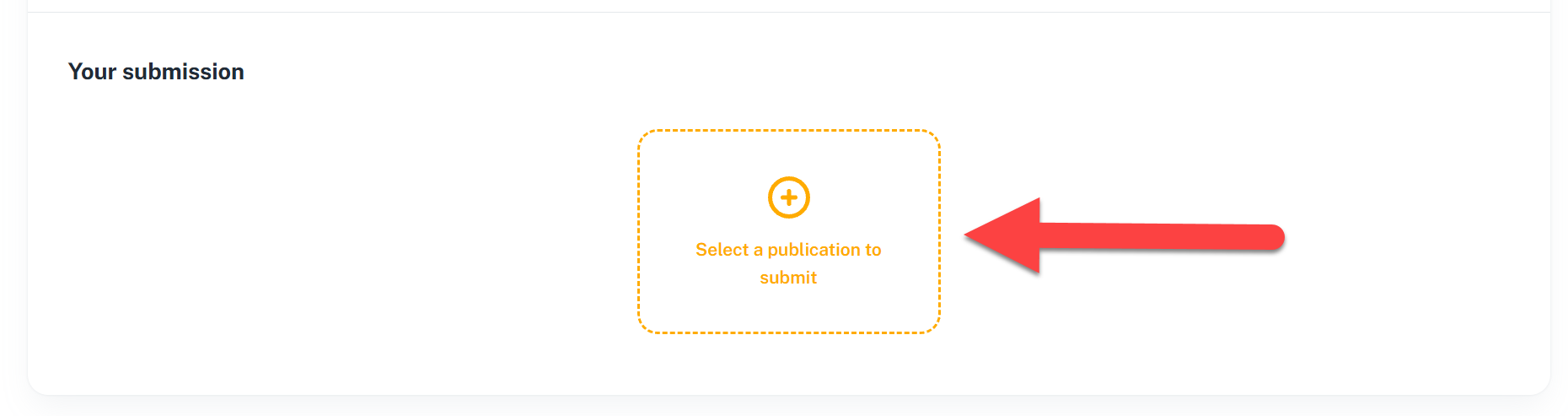
Under Your submission, select Select a publication to submit:
-
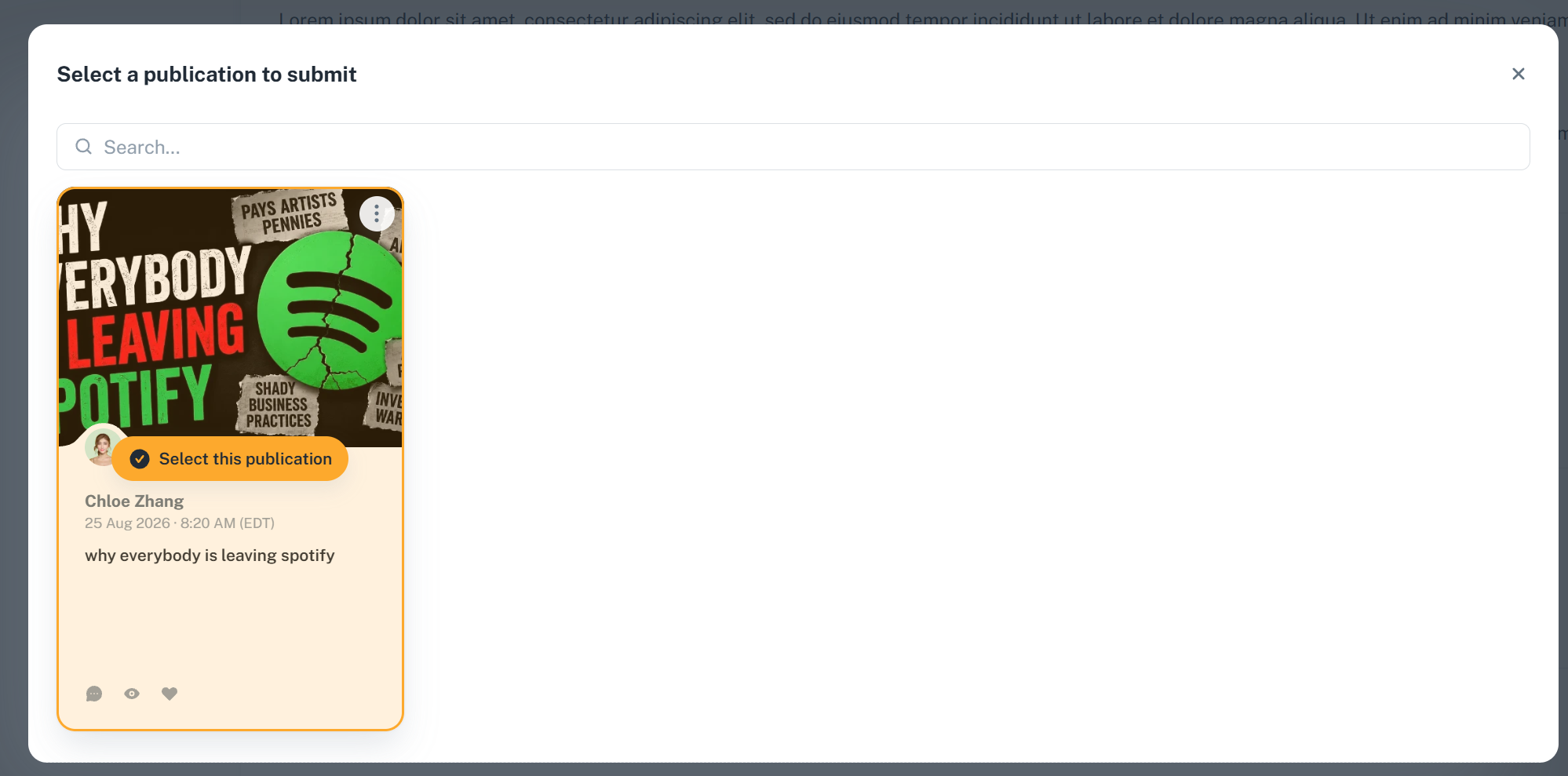
Find the publication you want to use. You can use the search field when needed:
-
Select the publication and confirm your submission:

After you submit
After submitting:
- Your assignment is marked as completed.
- The submission date and time are recorded.
- Your class manager can review and assess the non-editable copy.
-
The copy appears under Publications → Assignments in your account:
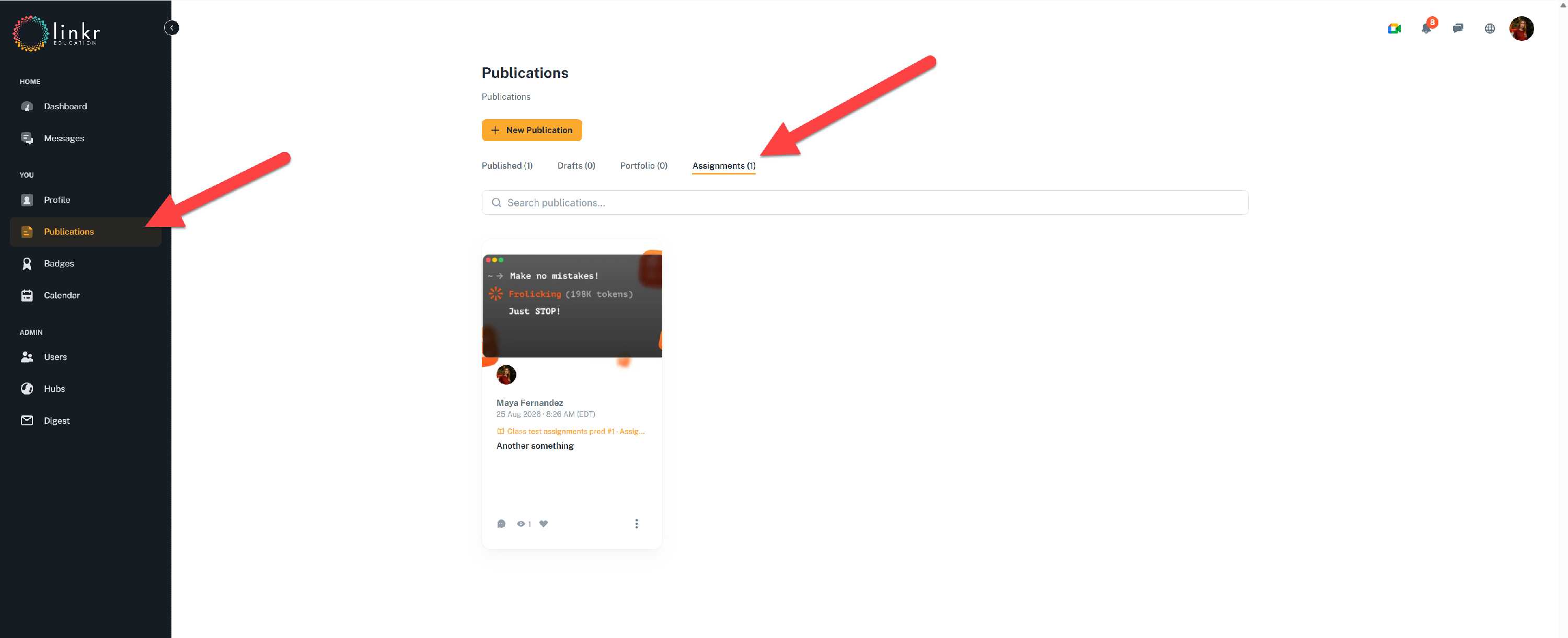
You can add this assignment copy to your public portfolio if you want to showcase the work outside the class. Adding it to your portfolio does not make your grade or private feedback public:

You cannot replace or withdraw a submitted publication yourself. If you need to submit a revised version, ask your class manager to send the submission back.
If your submission is sent back
A class manager may send your submission back when changes are needed.
When this happens:
-
You receive an in-app notification.

-
The assignment displays the class manager's message.
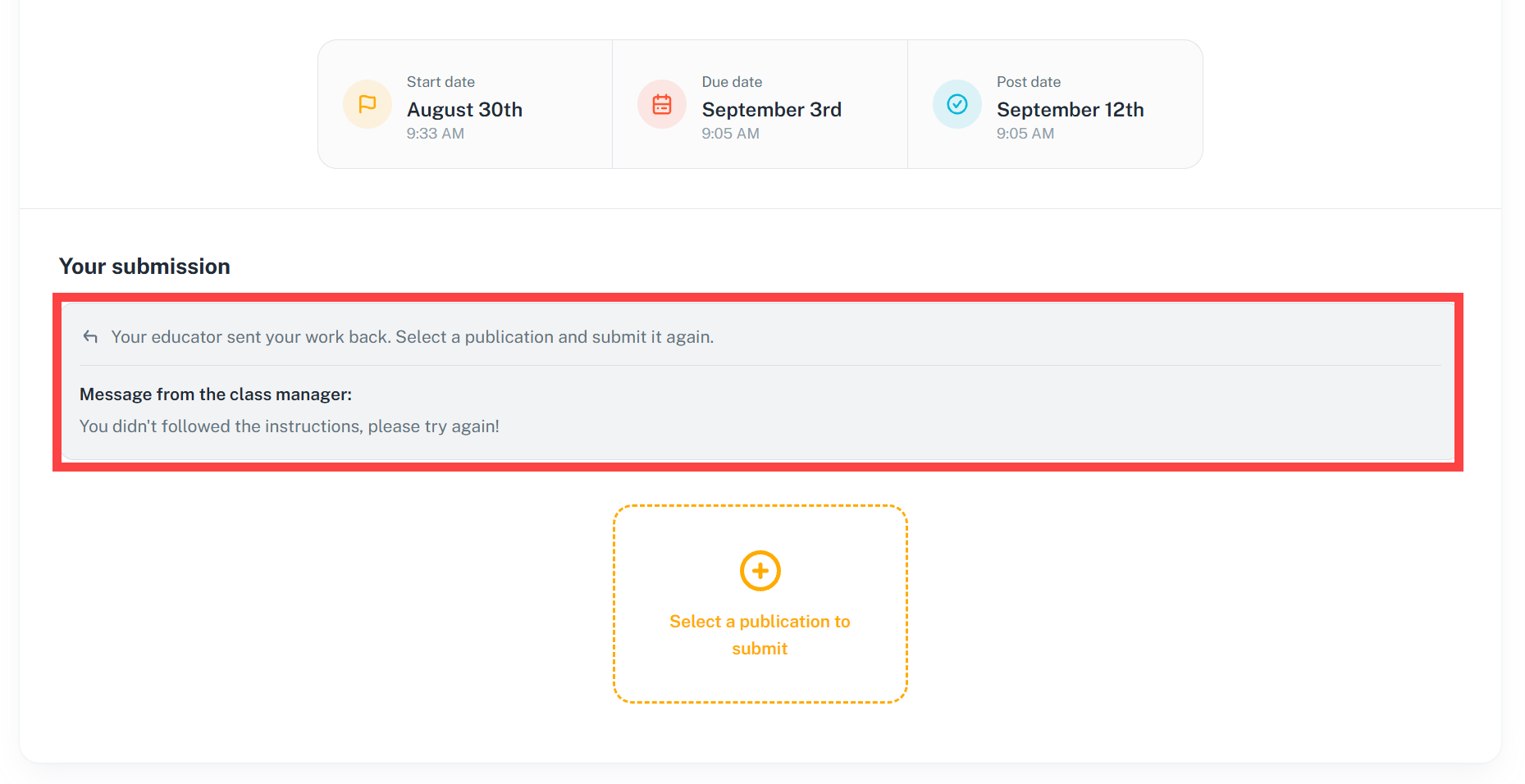
- The assignment is treated as not submitted until you submit again.
Review the message, make the requested changes, and restart the submission process by selecting a publication again.
View your grade and feedback
Submitting your work does not make a grade or feedback immediately available. Your class manager must assess and release the results first.
When results are released:
-
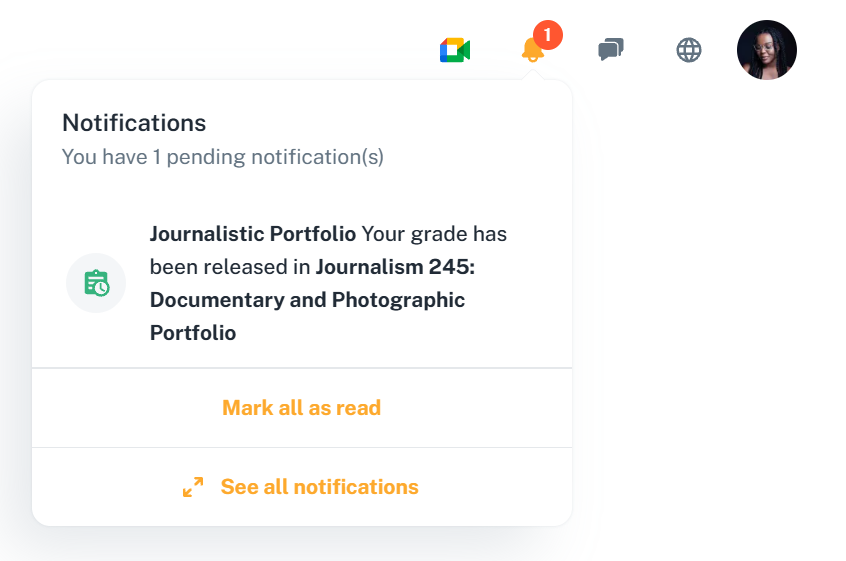
You receive an in-app notification:
-
The assignment displays your overall grade, values for any individual grading items, and private feedback when provided:
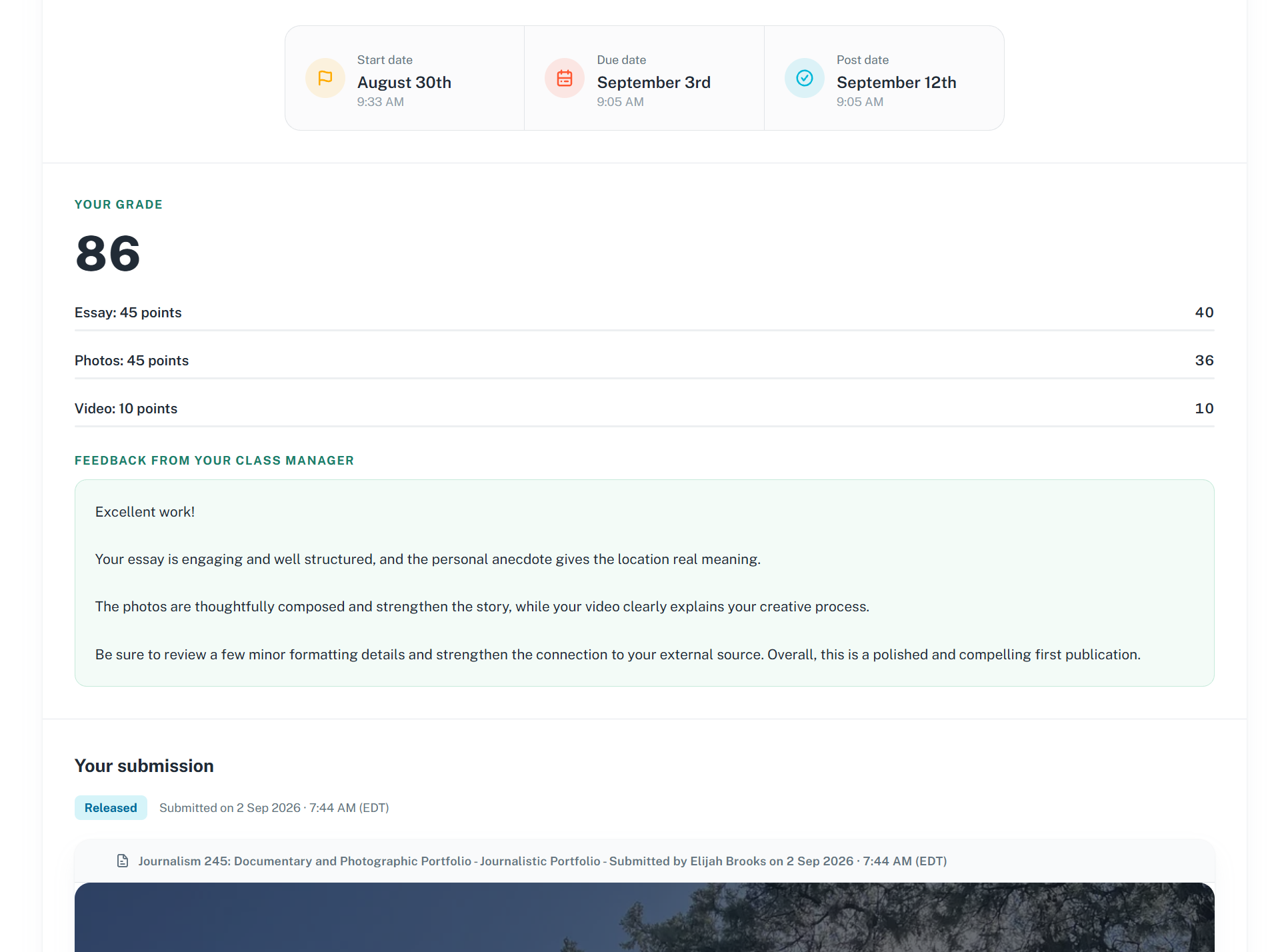
-
The class Grades tab is updated:
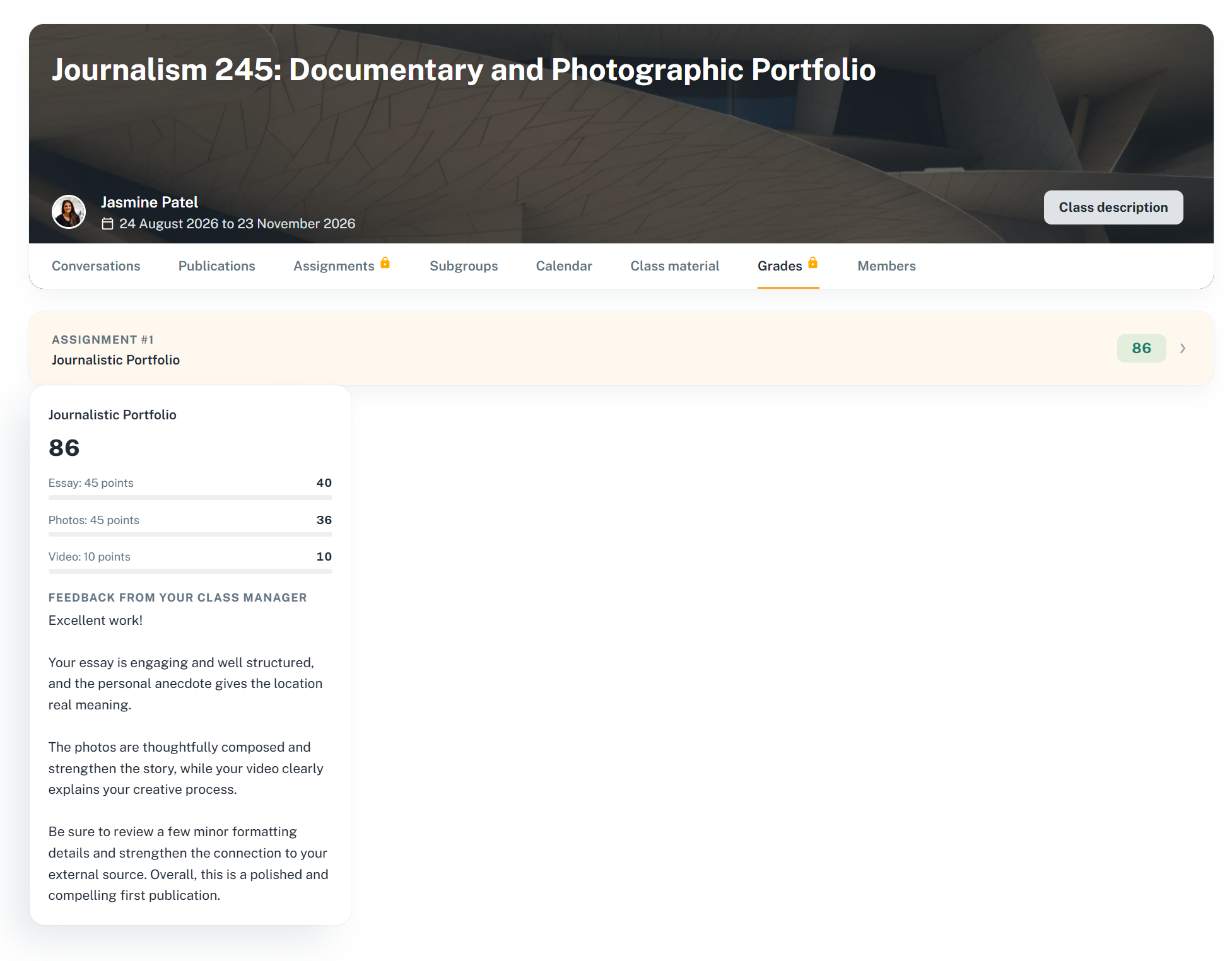
Select the assignment to review your results and the publication you submitted.
Your class manager can edit a released grade or feedback, including after the assignment has closed. Any saved changes become visible to you immediately.
If you have questions about an assignment, a submission that was sent back, or your results, contact one of your class managers.