
Assignments for class managers (BETA)
Assignments allow class managers to give learners a task, collect publications created in Linkr, and optionally provide grades and private feedback.
This guide explains how to create an assignment, monitor learners’ progress, assess submissions, release results, manage submission visibility, and close an assignment.
Note: Only class managers can create and manage assignments.
About assignment types
The assignments described in this guide are individual assignments: each learner submits their own publication and can receive an individual grade and private feedback. Collaborative assignments, which will allow learners to submit one shared publication per subgroup, are coming soon.
The learner experience
Once an assignment starts, learners can review its instructions and important dates, submit their work, and view their grade and private feedback once these are released by a class manager.
Learners can also view submissions their class manager has made visible in the assignment’s Class submissions tab. They do not need to submit their own work to view these submissions.
To explore the complete process from a learner’s perspective, please read Assignments for class members & learners.
In this article
- Create an assignment
- Schedule the assignment
- Configure grading and feedback
- Understand assignment statuses
- Monitor learners' progress
- Review and grade submissions
- Send a submission back
- Release grades and feedback
- Managing submission visibility
- View all grades for the class
- Close an assignment
- Download all submissions
- Edit an assignment
- Delete an assignment
Create an assignment
- Open the relevant class.
- Select the Assignments tab.
- Select + New Assignment.

Your work is saved automatically as a draft, so you can leave the form and finish the assignment later. The time of the most recent save appears at the bottom of the form.
Add the assignment details
Enter the following information:
- Title: The name learners will see for the assignment.
- Instructions: A description of the task and everything learners need to complete it. The text editor allows you to format the instructions and add links, images, or videos.
- Learning outcomes (optional): Outcomes associated with the assignment. These are displayed to learners and can be used to categorize the assignment.
When the assignment is ready, select Save & Schedule. The assignment will appear as Scheduled until its start date.

Schedule the assignment
Every assignment requires three dates:
- Start date: The date and time when the assignment becomes both visible and available to learners.
- Due date: The date and time by which learners are expected to submit their work.
- Post date: The date and time when learners should expect their grades and feedback. This date communicates the expected schedule, but it doesn't automatically release grades.
Before the start date
Before the assignment starts:
- Learners can't see the assignment.
- The class Assignments and Grades tabs remain hidden from learners.
- The assignment dates do not appear in learners' dashboard calendar or Assignments section.
At the start date, the assignment becomes visible, its dates appear on learners' dashboards:

Learners also receive an in-app notification:
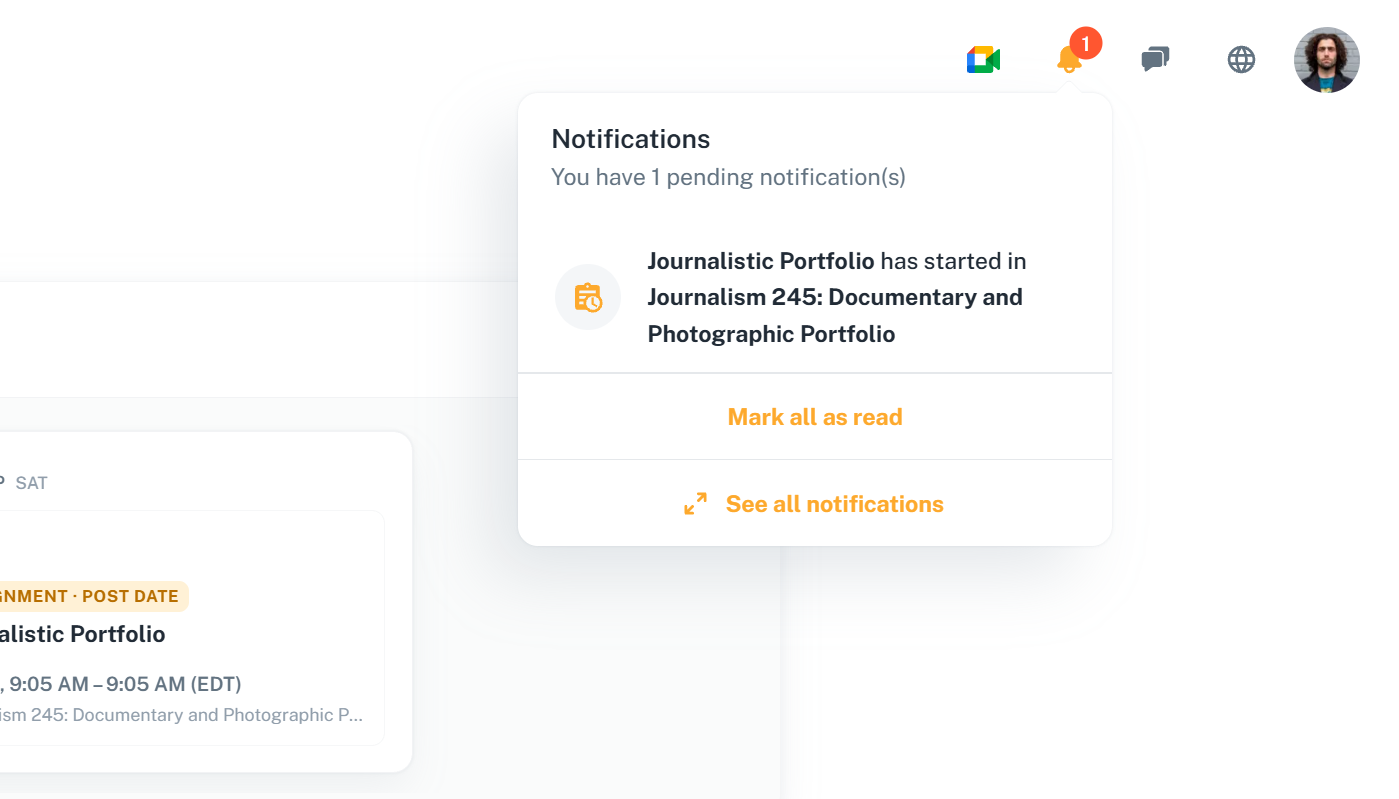
Once the assignment starts, it also appears on the class manager’s personal dashboard with progress rings for submissions and grades. Select the assignment to open its dashboard, which is explained later in this guide:

Allow submissions after the due date
By default, learners cannot submit after the due date.
Turn on Allow submission after due date if you want learners to continue submitting until you close the assignment. Late submissions include a timestamp in the assignment dashboard and exported progress report.

Important: The post date is optional and does not release grades automatically. Class managers can release grades before or after the post date while the assignment remains open.
Configure grading and feedback
Grading and feedback are optional and can be enabled independently. You can use either option, both options, or neither.
- Turn on Feedback to write private feedback for learners.
- Turn on Grading to assign grades to submissions.

Add grading items
When grading is enabled, an overall grade field is included by default. You can also add grading items to describe individual assessment criteria.

For each grading item, enter:
- An item name
- Instructions for learners
Grades are entered manually. The overall grade and individual grading-item fields are independent and are not calculated automatically. They accept numbers or letters, such as 10 , 85% , A , or B+ .
Note: There is no required maximum grade or points total. However, the overall grade field must contain a value before a submission can be marked as graded.
Understand assignment statuses
Assignments are organized into three sections in the class Assignments tab:
- Scheduled: The assignment has been scheduled but has not reached its start date.
- In progress: The assignment has started and has not been closed.
- Closed: A class manager has closed the assignment (this can't be undone). Learners can no longer submit work.
Within an assignment, each learner can have one of the following statuses:
- Not submitted: The learner has not submitted a publication.
- Submitted: The learner has submitted a publication that has not yet been graded.
- Graded: The submission has been graded, but the grade has not been released.
- Released: The learner’s grade, feedback, or both have been released.
- Sent back: The class manager returned the submission to the learner. It is included among learners who have not submitted until the learner submits again.
Monitor learners' progress
Open an assignment to view its dashboard. The progress indicators show the proportion and number of assigned learners whose work has been:
- Submitted
- Graded
- Released

Use the status tabs in the table to view Assigned, Not submitted, Submitted, Graded, or Released learners. You can also search for a learner by name.
For each learner, the dashboard shows the current status, submission date and time, grade, and grade-release date and time. Open the three-dot menu beside a learner to view the submission, send it back when applicable, or send the learner a message.
Export a progress report
Select Export from the assignment dashboard to download a Excel (.xlsx) file containing a snapshot of the assignment's current status.

The report includes:
- The assignment and class names
- The date and time when the report was generated
- Every assigned learner, their email address and their current status
- Submission dates and times
- Grades
- Grade-release dates and times
- A summary of the total learners and the numbers submitted, graded, and released

Export the report again whenever you need the latest information.
Review and grade submissions
As soon as a learner submits, their work becomes available for assessment.
- Open the assignment.
-
Select the Grading tab.
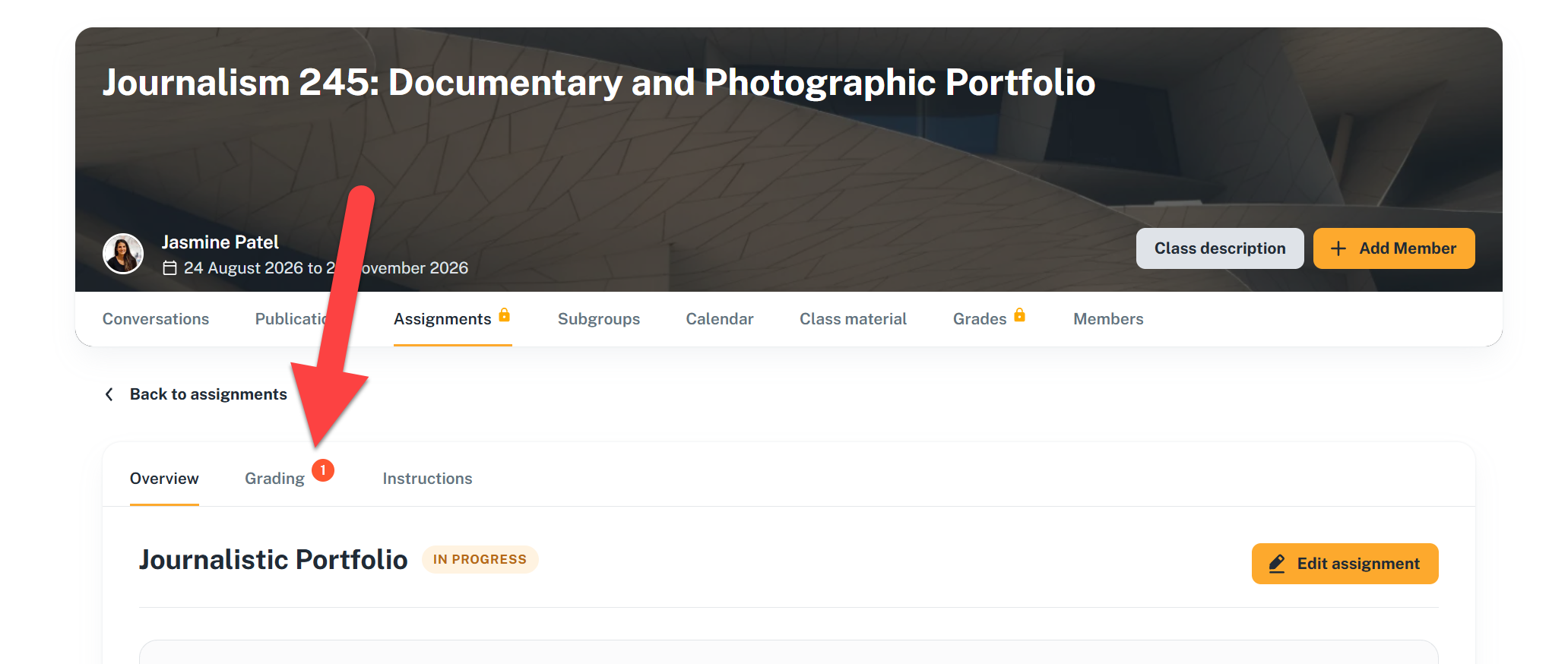
- Select a learner.
- Review the non-editable copy of the publication they submitted.
-
Select the floating Grade button on the right to open the grading panel.
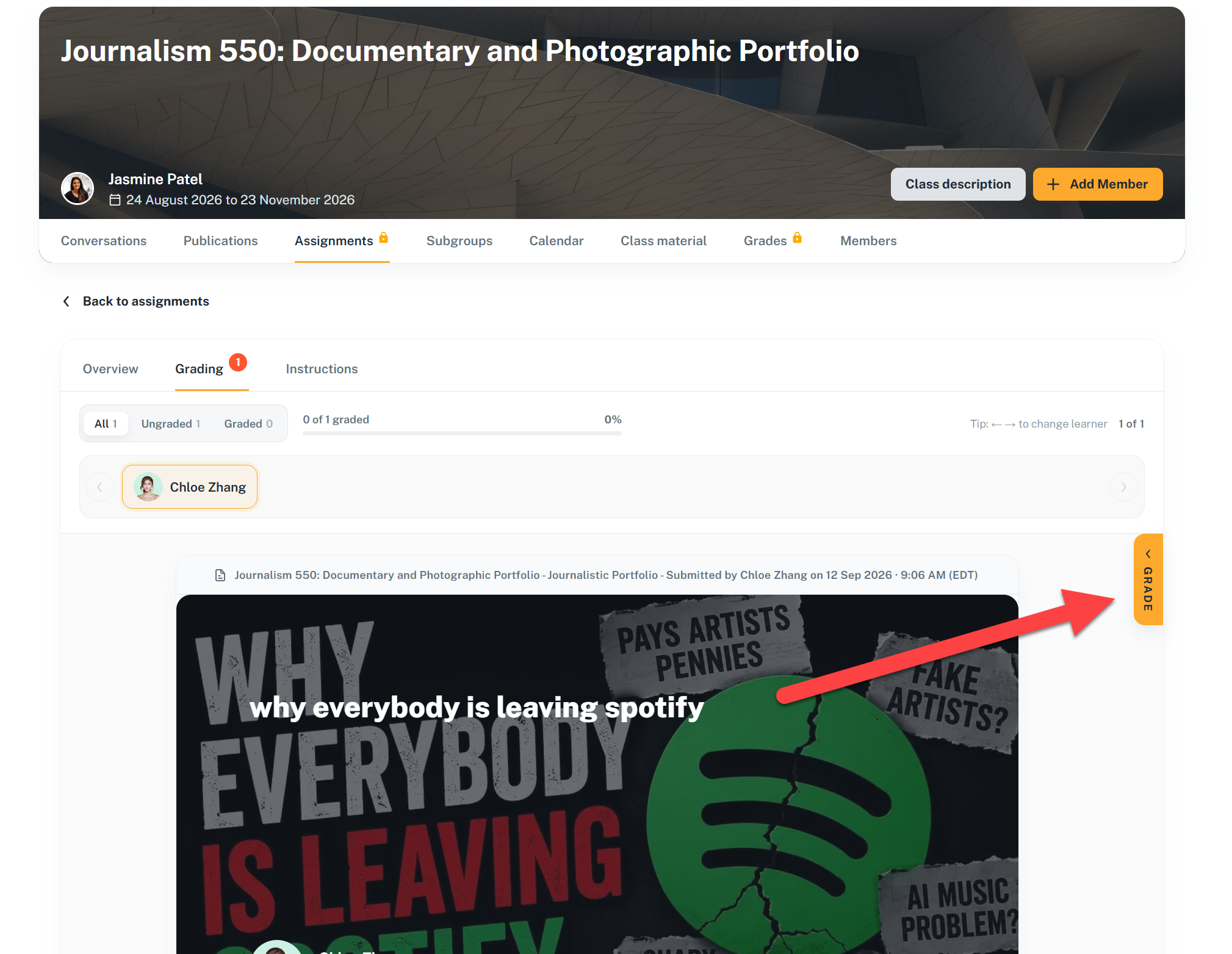
-
Enter an overall grade and, if used, values for the individual grading items. Add private written feedback if applicable.
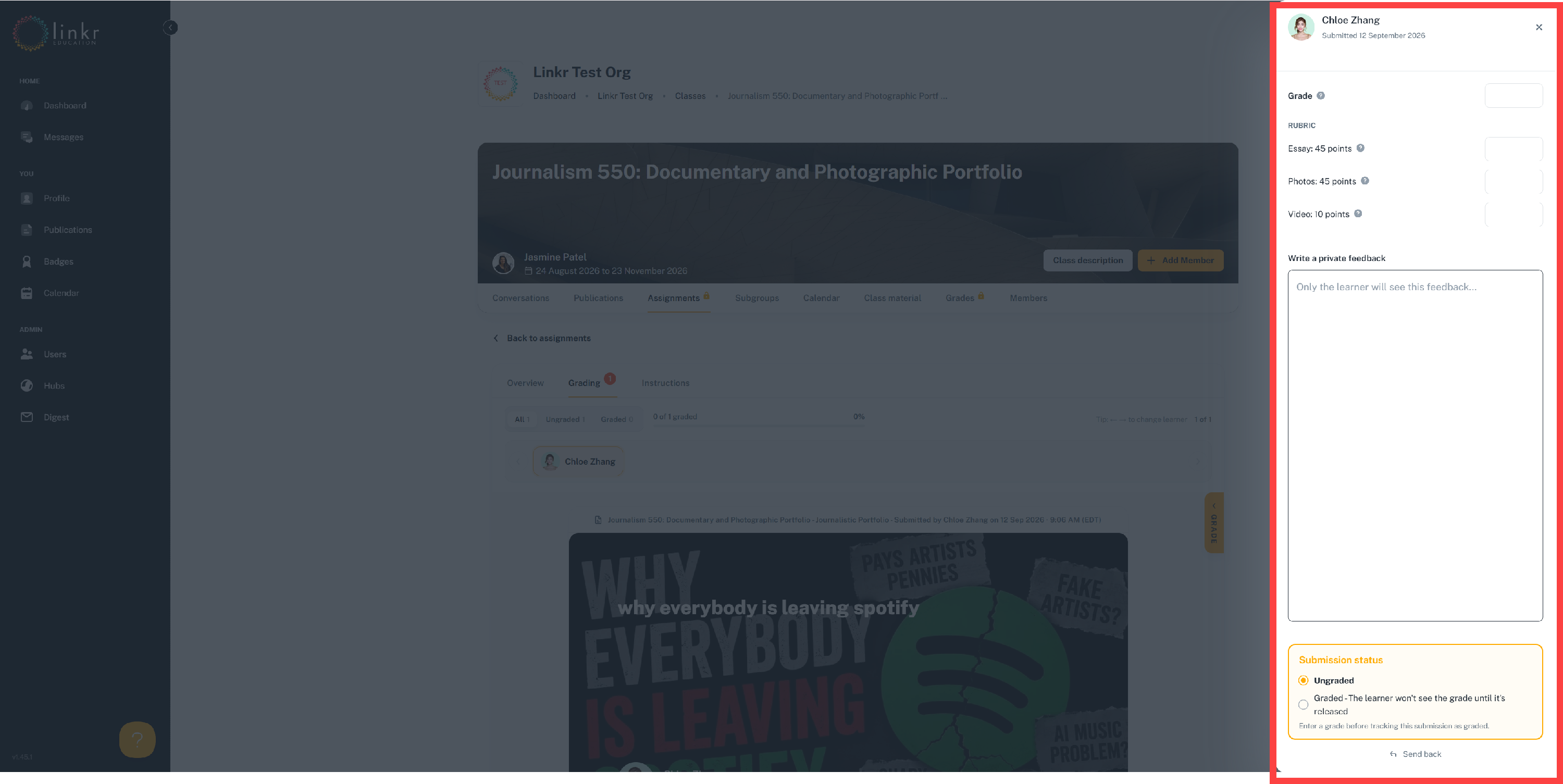
Your grading work is saved automatically. You can grade a submission at any time after it is submitted, including before the due date.
Once you have finished assessing the submission, mark it as Graded. You can undo this action later if needed.

Note: You can modify grades and feedback at any time after release. Any changes you save will immediately become visible to the learner.
How submitted publications are preserved
Learners select an existing publication created in Linkr when submitting their work. A publication must already exist before it can be selected.
When a learner submits, Linkr creates a non-editable copy for the assignment. This preserves the version that was submitted even if the original publication is later changed. The copy also appears under Publications → Assignments in the learner's account and can be added to their public portfolio.
A learner can use the same original publication for more than one assignment. Class managers can't submit work on a learner's behalf.
Send a submission back
Learners can't replace or withdraw a submitted publication themselves. If they need to revise their work, you can send the submission back. To do so:
- Open the learner's submission in the grading tool, or open the learner's three-dot menu on the assignment dashboard.
-
Select Send back.

- Write a message explaining what the learner should revise.
- Confirm the action.
The learner receives an in-app notification:

The assignment page is updated with the class manager's message:
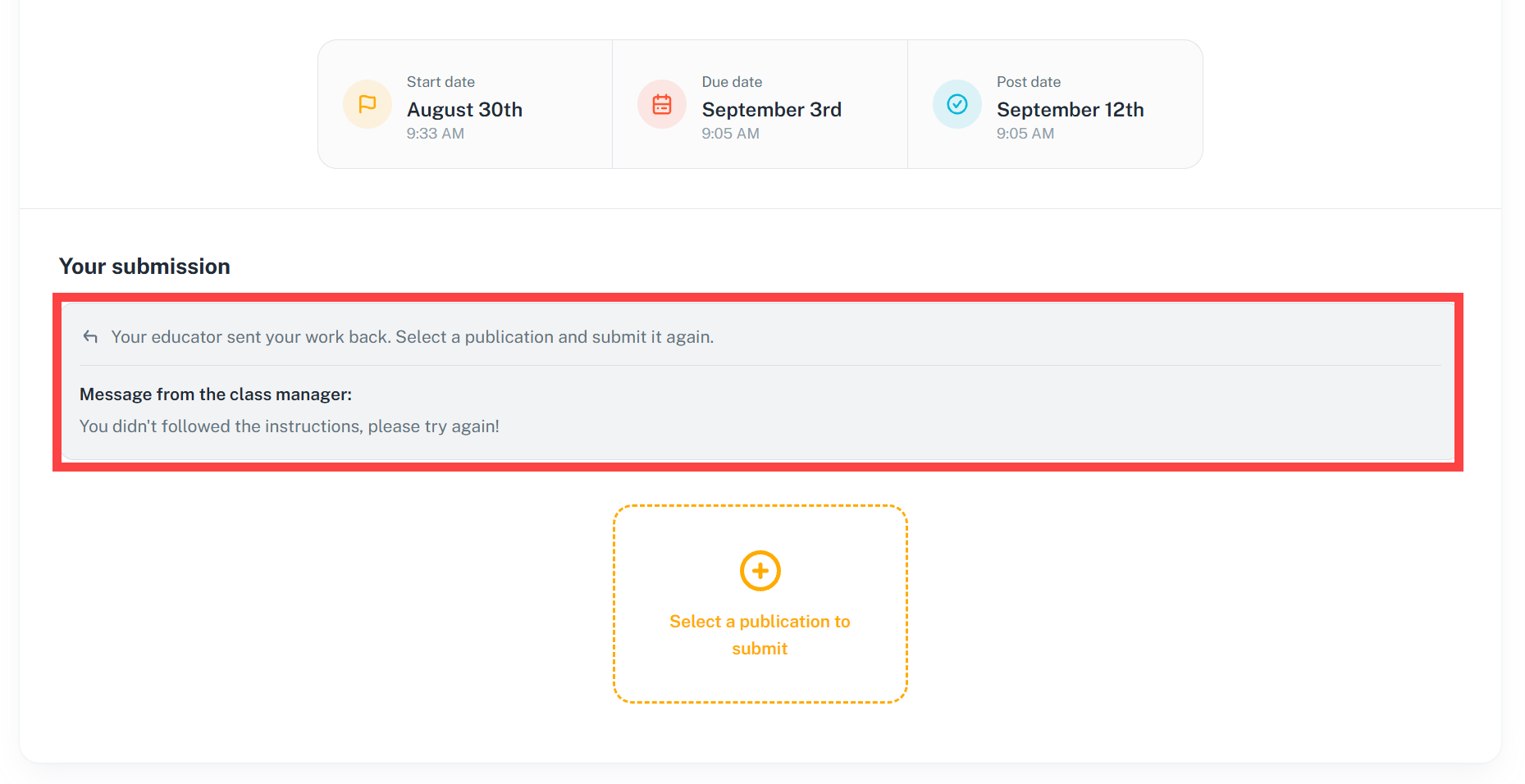
And the learner's status changes to Sent back.

The learner can then restart the submission process and submit a new publication. Sent-back submissions are grouped with learners who have not submitted.
Release grades and feedback
Grading a submission does not automatically make the result visible to the learner. You must release it first. To do so, select Release grades from the the class manager’s assignment dashboard to release all existing grades that have not yet been released. The button displays the number of grades ready for release.

You can release grades at any time while the assignment is open. You do not need to wait for the post date.
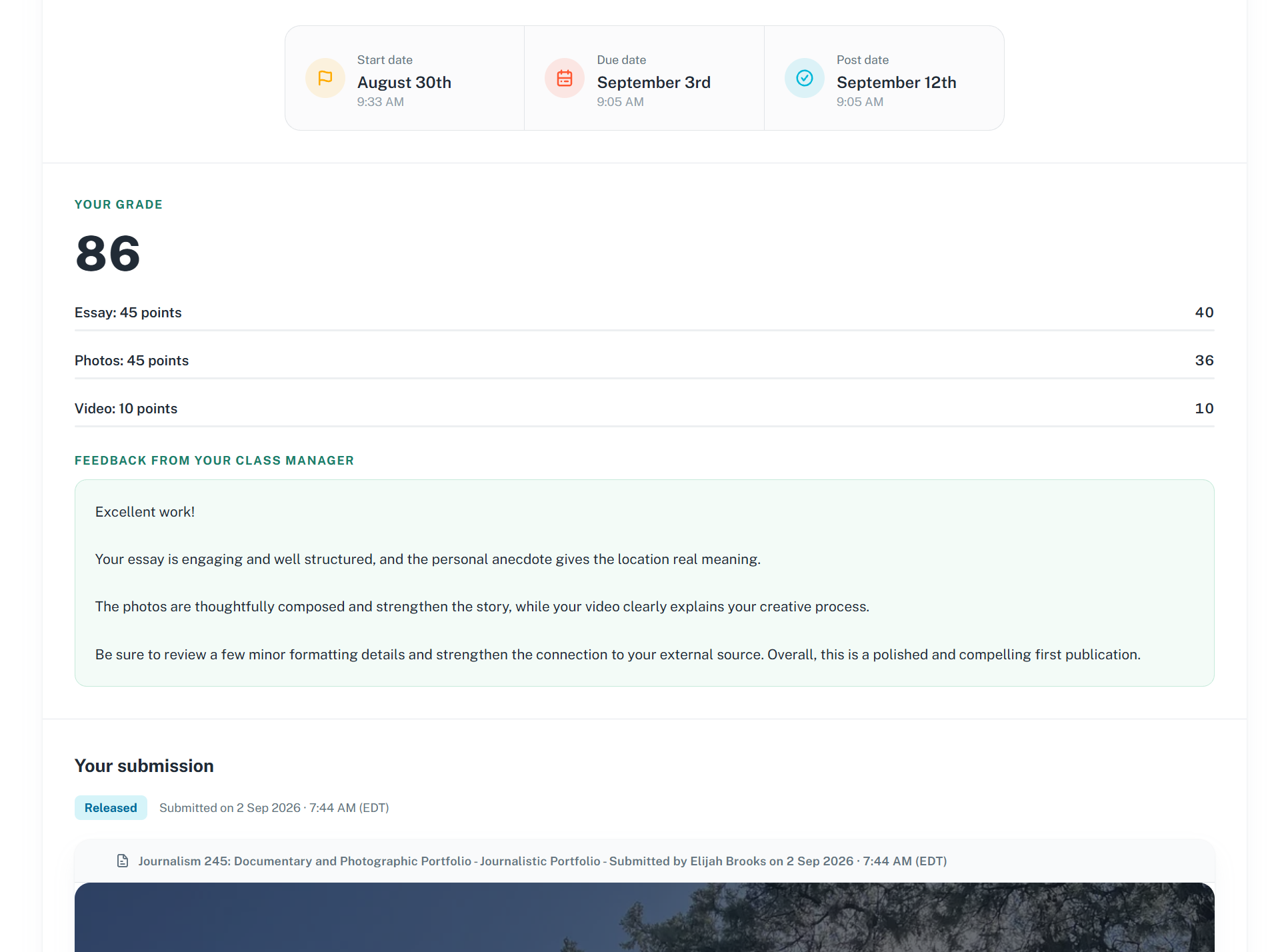
Once released, the learner can see:
- The overall grade
- Values entered for individual grading items
- Private feedback from the class manager
- The non-editable publication submitted for the assignment
When you release a grade, the learner receives an in-app notification:
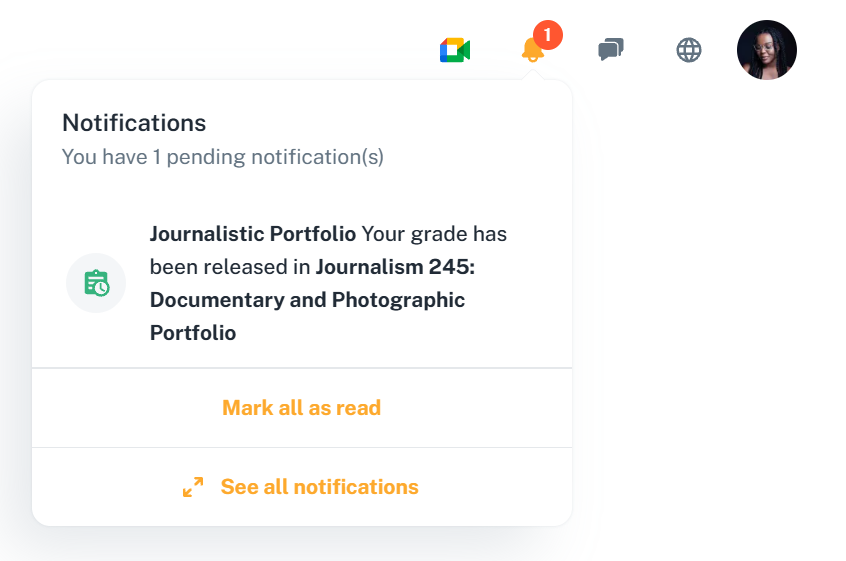
The assignment page is updated with the class manager's grade and feedback (if any):
The learner's Grades tab is updated:

And the learner's status in the Class manager's assignment dashboard changes to Released.

The grading tool also displays the blue Released status.


Releasing a grade cannot be undone. However, grades and feedback can still be edited after release, including after the assignment is closed. Please keep in mind that learners will see those changes immediately.
Manage submission visibility
You can choose which released submissions class members can see from the assignment’s Class submissions tab. Only released submissions appear in this tab. Submitted or graded work that has not been released is not available for sharing.

Every released submission is Hidden by default:
- Hidden: The submission is accessible to class managers but hidden from other class members.
- Visible: Class members can view the submitted publication. Grades and private feedback remain visible only to class managers and the relevant learner.
You can change visibility at any time, including after the assignment closes. A visible submission can be hidden again.

How to show or hide submissions
- Open the assignment.
- Select the Class submissions tab.
- Select Manage visibility for all submissions.
- Alternatively you can set each submission to Visible or Hidden one publication at a time by using the 3-dot menu.
What class members can see
Class members can view visible submissions even if they have not submitted their own work. If activated in the assignment form, comments and likes can be done on submissions viewed through this tab.
If a submission is sent back
Sending a submission back removes it from Class submissions, including if it was visible. If the learner resubmits and the new submission is released, it appears in the tab again, hidden by default.
Note: Releasing grades and feedback does not automatically make a submission visible to classmates. Release status and submission visibility are managed separately.
View all grades for the class
The class Grades tab provides an overview of every learner's grades across all assignments.
From this tab, class managers can:
- Search for a learner
- View and edit the grade received for each assignment
- Identify learners who do not yet have a grade
- Export the class grades for all assignments in a Excel (
.xlsx) file

Close an assignment
Closing an assignment lets you close the book on it. It does not happen automatically on the due or post date.
To close an assignment:
- Open the class Assignments tab.
- Find the assignment under In progress.
- Open its three-dot menu.
- Select Close.

Once closed:
- Learners cannot submit or resubmit work.
- Sent-back work cannot be submitted again.
- Unreleased grades cannot be released.
- The assignment’s content, schedule, and settings can no longer be edited.
- Already released grades and feedback can still be edited.
- The Class submissions tab remains available, and class managers can still show or hide individual released submissions.
- Closing the assignment does not change submission visibility or add submissions to the class Publications tab.
- The assignment moves to the Closed section.
Closing an assignment is an administrative action and does not notify learners.
Important: Before closing an assignment, review all submissions and release every grade you want learners to receive.
Download all submissions
After an assignment has been closed, you can download all the submitted work:
- Find the assignment under Closed.
- Open its three-dot menu.
- Select Download all submissions.
Linkr downloads a ZIP archive containing every publication submitted when the assignment was closed as an individual PDF. Each file is named using the class name, assignment name, and learner name.
The archive remains available as long as the class has not been deleted.

Note: The Export button on the assignment dashboard downloads an Excel report of learner statuses and results. Download all submissions downloads the submitted publications themselves as PDF files in a ZIP archive.
Edit an assignment
While an assignment is scheduled or in progress, class managers can edit all its settings, even after learners have submitted. This includes its details, dates, grading and feedback options, and publication visibility.
After an assignment is closed, its content and schedule can no longer be edited. You can still:
- Edit grades and feedback that were released before closure
- Change whether submitted publications appear in the class Publications tab
Changes to released grades and feedback become visible to the learner immediately.
To edit an assignment, open its three-dot menu or go to the assignment dashboard:

Delete an assignment
To delete an assignment, open its three-dot menu and select Delete. Type delete in the confirmation window and confirm the action.
Deleting an assignment permanently removes:
- The assignment
- All its submissions
- The corresponding non-editable copies under learners' Publications → Assignments tab
This action cannot be undone.